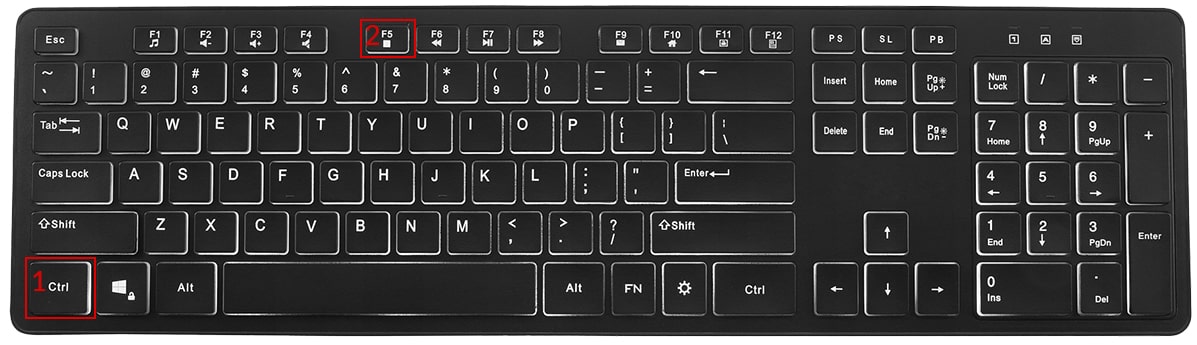
Hold down the key Ctrl, then press the key F5Repeat this action at least 3 times
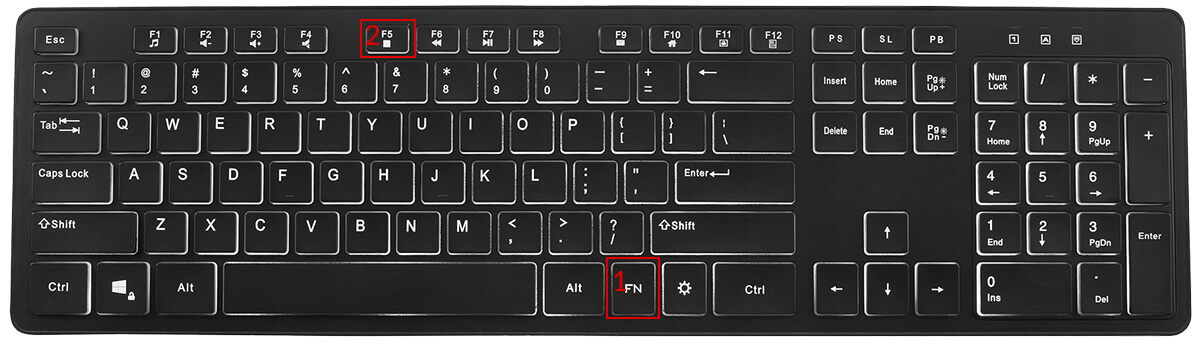
If this option does not work, try:
Hold down the key Fn, then press the key F5 Repeat this action at least 3 times
IN THE OPERATING SYSTEM:
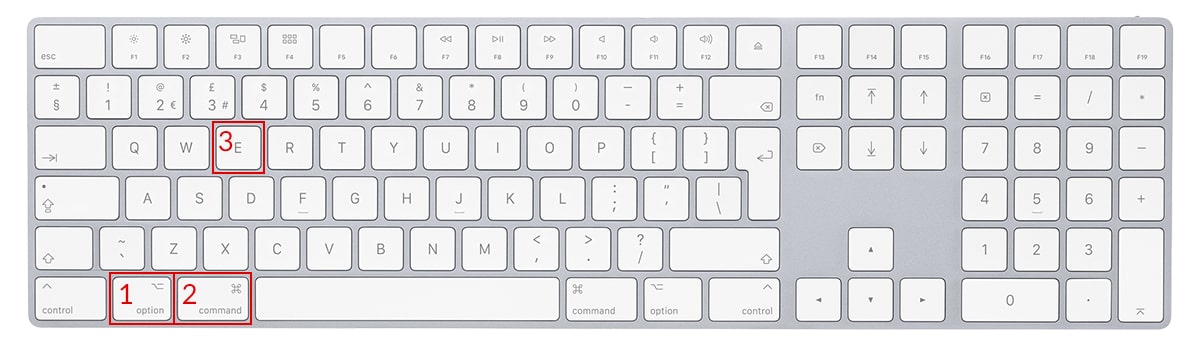
For the Safari browser:
Hold down the key Option + Cmd(Command), then press the key ERepeat this action at least 3 times
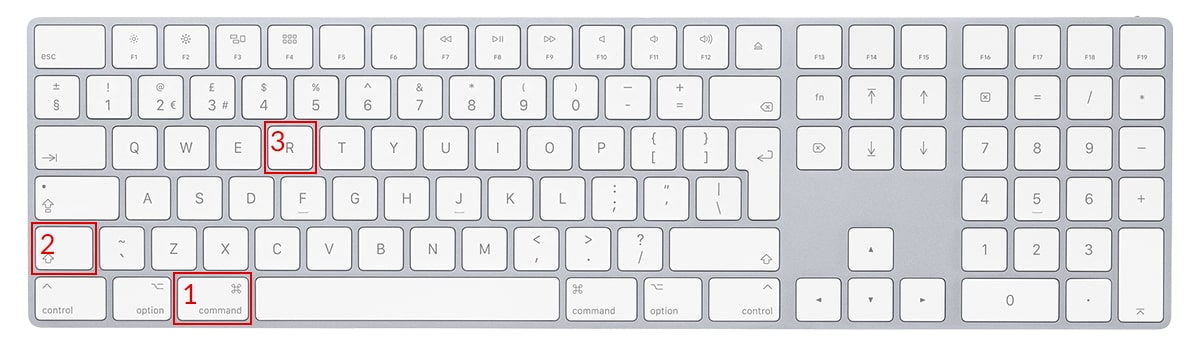
For the Chrome, Firefox, Opera, Edge browser:
Hold down the key Cmd(Command) + Shift, then press the key RRepeat this action at least 3 times
Submit a suggestion
Warning
Please turn off Caps Lock to write and send a suggestion.
Corrective note
Afaktury.pl provides a feature for issuing corrective notes instantly. This document is prepared by the buyer when they notice errors in the
contents of an invoice after receiving it. A corrective note requires the seller’s approval, but the law does not specify what form that approval
should take. Therefore, a signature is not required. The document may be emailed to the contractor and remains valid unless the contractor
raises an objection. Polish law does not specify a final deadline for issuing a corrective note.
When can a corrective note be issued?
A corrective note is used to correct minor errors on invoices. These errors cannot concern amounts and tax rates, net unit prices, the gross
order value, discount and rebate amounts and rates, or the units and quantities of ordered products. Errors of this kind require the seller to
issue a corrective invoice. Unlike a corrective note, such a document must be signed by the recipient. The seller has 30 days to deliver it to
the customer.
A corrective note can be used to change the following details:
the addresses of both parties to the transaction,
tax identification numbers and the buyer’s first and last name (if the buyer is a natural person),
the invoice number,
the place where it was issued,
the invoice issue date,
the date on which the service or order was completed,
the invoice payment deadline,
minor errors in product or service names (for example, typographical errors),
the payment method.
Only formal errors that have no tax consequences may therefore be corrected. However, a corrective note cannot be issued if the tax
identification number, the company name or recipient’s first and last name, and the contact details would all change at the same time.
How can you issue a corrective note instantly and without the risk of errors?
The best way to issue a corrective note is to use invoicing software. With Afaktury.pl, you can do this in just a few minutes. Complete the
electronic form available at https://afaktury.pl/. In the top menu, select “Issue document” on the left and then choose “Corrective note”. A form
containing all corrective-note details required by law will appear. These include:
the title “Corrective note”,
the consecutive corrective note number,
the date and place of issue,
the type and number of the corrected original invoice,
the issue date and sale date of the corrected invoice,
the seller’s company name, tax identification number, and address,
the buyer’s name, address, and identification details,
the original content of the corrected invoice and the correct content after the changes.
A corrective note may also contain additional items. You can add them in Afaktury.pl after obtaining access to the full version of the software.
Among other things, you can provide the contractor with the bank account number for a transfer and add any comments. You can also freely
design the header and footer of the corrective note. With one click, the document can be generated as a PDF file protected against editing.
Registered users can also save a corrective note before finalising it. Afaktury also lets you email the document to your customer.
Features that speed up the issuing of corrective notes
Completing the online corrective-note form takes very little time because Afaktury.pl automatically fills in individual fields. For example, with
one click you can retrieve the contractor’s company name and address details. Simply provide the tax identification number and the information
will be retrieved automatically from the Polish Central Statistical Office database. You can shorten the time needed to issue subsequent notes
by defining a default city and using the options for saving and loading contractor data. You can also identify the persons authorised to receive
and issue the document.
Try Afaktury.pl free of charge
Afaktury.pl lets you issue corrective notes, invoices, bills, and other sales documents quickly, conveniently, and without the risk of errors. You
can access all system features free of charge during a 30-day trial. Simply register on the website and provide your company details. We will
email you when the trial period is about to end. Only then will you make an informed decision about whether to stay with us and continue using
the many features of our invoicing software.
Corrective note — PDF printout
Attention!
You are currently editing this document.
All changes made will apply only to this document.
To issue a new document with similar data, click "Issue similar"
Changing calculations to use the gross price changes how document amounts are calculated and may produce incorrect results if the invoice was created from the net price!
The columns in the table correspond to successive fields in the Standard Audit File for Tax according to the specification published on the website of the Ministry of Finance. Field names and descriptions from the specification:
LpSprzedazy - Row number in the VAT sales register
NrKontrahenta - Number used to identify the customer for tax or value added tax purposes
NazwaKontrahenta - Customer's full name or company name, Adres Kontrahenta - Customer address
DowodSprzedazy - Sales document number
DataWystawienia - Sales document issue date
DataSprzedazy - Sale date, if specified and different from the sales document issue date. Otherwise - empty field
K_10 - Net amount - Supply of goods and provision of services within the country, exempt from tax
K_11 - Net amount - Supply of goods and provision of services outside the country
K_12 - Net amount - including provision of services referred to in Article 100(1)(4) of the Act
K_13 - Net amount - Supply of goods and provision of services within the country, taxed at 0%
K_14 - Net amount - including the supply of goods referred to in Article 129 of the Act
K_15 - Net amount - Supply of goods and provision of services within the country, taxed at 5%
K_16 - Output tax amount - Supply of goods and provision of services within the country, taxed at 5%
K_17 - Net amount - Supply of goods and provision of services within the country, taxed at 7% or 8%
K_18 - Output tax amount - Supply of goods and provision of services within the country, taxed at 7% or 8%
K_19 - Net amount - Supply of goods and provision of services within the country, taxed at 22% or 23%
K_20 - Output tax amount - Supply of goods and provision of services within the country, taxed at 22% or 23%
K_21 - Net amount - Intra-Community supply of goods
K_22 - Net amount - Export of goods
K_23 - Net amount - Intra-Community acquisition of goods
K_24 - Output tax amount - Intra-Community acquisition of goods
K_25 - Net amount - Import of goods settled in accordance with Article 33a of the Act
K_26 - Output tax amount - Import of goods settled in accordance with Article 33a of the Act
K_27 - Net amount - Import of services, excluding services purchased from value added tax taxpayers to which Article 28b of the Act applies
K_28 - Output tax amount - Import of services, excluding services purchased from value added tax taxpayers to which Article 28b of the Act applies
K_29 - Net amount - Import of services purchased from value added tax taxpayers to which Article 28b of the Act applies
K_30 - Output tax amount - Import of services purchased from value added tax taxpayers to which Article 28b of the Act applies
K_31 - Net amount - Supply of goods and provision of services for which the buyer is the taxpayer under Article 17(1)(7) or (8) of the Act (completed by the supplier)
K_32 - Net amount - Supply of goods for which the buyer is the taxpayer under Article 17(1)(5) of the Act (completed by the buyer)
K_33 - Output tax amount - Supply of goods for which the buyer is the taxpayer under Article 17(1)(5) of the Act (completed by the buyer)
K_34 - Net amount - Supply of goods and provision of services for which the buyer is the taxpayer under Article 17(1)(7) or (8) of the Act (completed by the buyer)
K_35 - Output tax amount - Supply of goods and provision of services for which the buyer is the taxpayer under Article 17(1)(7) or (8) of the Act (completed by the buyer)
K_36 - Output tax amount on goods and services included in the physical inventory referred to in Article 14(5) of the Act
K_37 - Return of the deducted or refunded amount spent on purchasing cash registers, as referred to in Article 111(6) of the Act
K_38 - Output tax amount on the Intra-Community acquisition of means of transport, reported in field K_24, payable by the deadline referred to in Article 103(3), in conjunction with paragraph 4 of the Act
K_39 - Tax amount on the Intra-Community acquisition of motor fuels, payable by the deadlines referred to in Article 103(5a) and (5b) of the Act
Select the appropriate parameter for the item:
GTU_01 - alcoholic beverages
GTU_02 - fuels
GTU_03 - heating oils and lubricating oils
GTU_04 - tobacco products
GTU_05 - waste
GTU_06 - electronic devices and their parts and materials
GTU_07 - vehicles and automotive parts
GTU_08 - precious and base metals
GTU_09 - medicines and medical devices
GTU_10 - buildings, structures and land
GTU_11 - trading in greenhouse gas emission allowances
GTU_12 - intangible services, including marketing and advertising services
GTU_13 - transport and warehousing services
Option available with a Prestige account
This option is available only with a Prestige account.
To add this option to your account, go to Extend account validity and order a Prestige account, or call us at: 601 131 900.
Feature available with a paid subscription
To use this feature, purchase a paid subscription: Standard, Prestige or Prestige + P.
Limit exceeded
The printing/sending limit for this account has been exceeded. You can create PDFs for 10 documents per month (printing/sending).
To print and send documents without limits, purchase a paid subscription: Standard, Prestige or Prestige + P.
Limit exceeded
The document saving limit for this account has been exceeded. A free account allows only 3 documents per month and 1 document edit.
To save documents without limits, purchase a paid subscription: Standard, Prestige or Prestige + P.
Change document number
The next available document number in the selected month is:
Document number:
Attention!
You are changing the document status to Archived
Archived documents cannot be edited or have their status changed. Changing the status to Archived cannot be undone.
Do you want to continue?
Kaucja, kod CN, dokumenty kasowe i KSeF - co zmieniliśmy Ostatni rok przyniósł przedsiębiorcom sporo zmian. W październiku 2025 r. ruszył system kaucyjny, a w 2026 r. KSeF stał się obowiązkowy. Wiele firm, które do tej pory wystawiały...
Internal service error, code E01. Please contact technical support.
The most common cause of this error is a lost internet connection. Refresh the current webpage.
If the problem persists, contact us.
The action was completed successfully.
You are not the owner of this item.
Invalid data: incorrect Tax ID or account number
You do not have permission to perform this action.
This field cannot be empty.
No results.
The verification code is incorrect
Internal service error, code E04. Please contact technical support.
The form could not be sent. Check that all required fields have been completed